

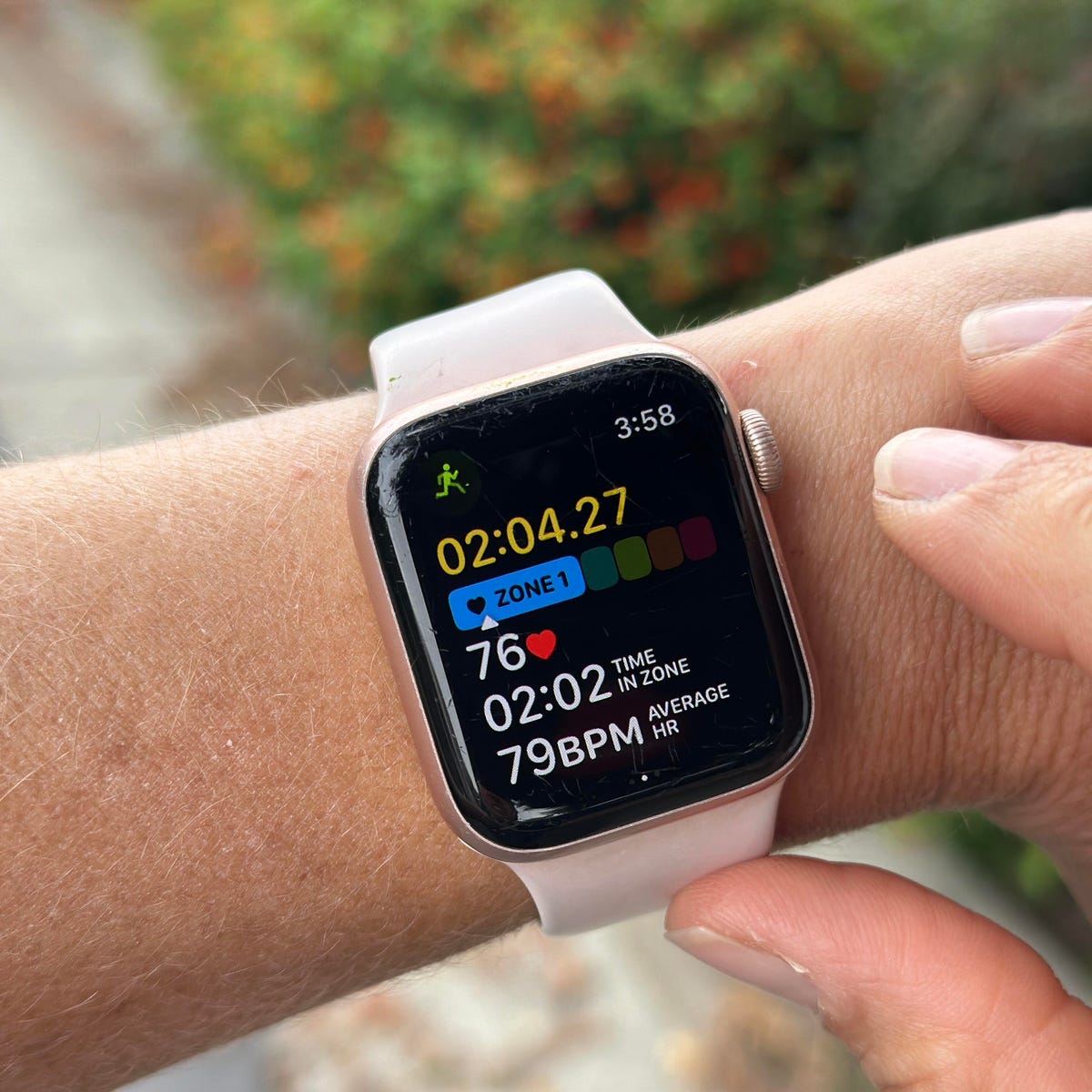
Apple Watch calculates zones using standard formulas. MOTRA doesn’t. We analyse your real workout history, apply our max heart rate algorithm, and build zones from actual effort data. That means your MOTRA zones should be more accurate and personalised.
In most cases, after around 10 solid workouts with varied intensity, your zones are already fairly dialled in. The more you train, the more precise they become.
This guide shows you how to align your Apple Watch zones with MOTRA.
Step 1: Find Your Zones Inside MOTRA
- Open the MOTRA app
- Go to your Profile
- You’ll see all five heart rate zones displayed
These are calculated from your workout history using our max heart rate algorithm. Unlike generic age-based formulas, MOTRA looks at how your heart actually responds during training.
For reference, here’s how MOTRA rewards each zone:
Zone 1 (50–60%) – 0 EP/min
Zone 2 (60–70%) – 1 EP/min
Zone 3 (70–80%) – 1.5 EP/min
Zone 4 (80–90%) – 3 EP/min
Zone 5 (90–100%) – 5 EP/min
Step 2: Set Custom Heart Rate Zones On Apple Watch
Now you’ll mirror those zones inside Apple.
- Open the Watch app on your iPhone
- Scroll down and tap Workout
- Scroll down to Heart Rate Zones
- Select Custom
You can now manually enter the exact BPM ranges that match your MOTRA zones.
Once saved, your Apple Watch will display zone data during workouts using the same structure MOTRA uses to calculate Effort Points.
Why This Matters
MOTRA uses your actual recorded effort to determine max heart rate and zone thresholds. That makes it:
- More personalised
- More accurate over time
- Better aligned with how your body truly performs
When your Watch and MOTRA match, you get:
- More consistent in-session feedback
- Clearer understanding of where your EPs are coming from
- Better training alignment
Important Notes
- Your MOTRA zones will update as you log more workouts.
- If your max heart rate shifts meaningfully, update your Apple Watch zones again.
- Make sure your workouts include varied intensity so the algorithm can learn